
Setup guide
Get your training data flowing to Coach AMA
Coach AMA uses intervals.icu as the hub between your recording apps and devices, your planned workouts and the coach. For the complete loop, connect both sides: your training service to intervals.icu, then Coach AMA to intervals.icu.
1. Create your intervals.icu account
Create a free account at intervals.icu. You need two separate connections: the app or device that records your training sends activities to intervals.icu, and Coach AMA connects to intervals.icu from your dashboard.
2. Connect the service that records your training
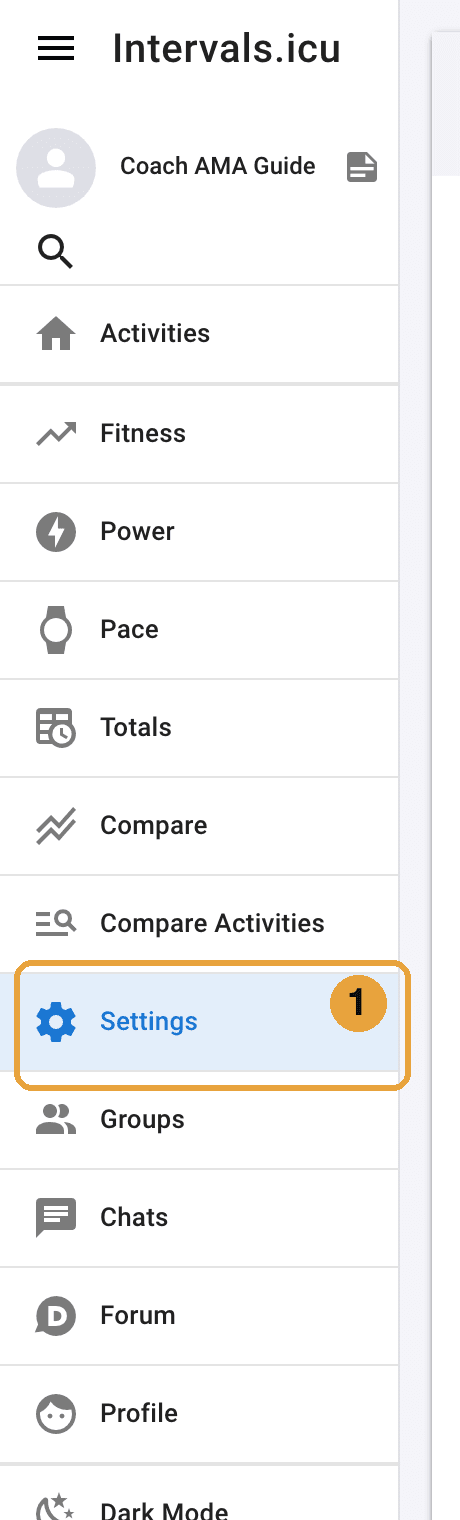
In intervals.icu, open Settings → Connections and choose the service you actually use — for example Garmin Connect, Wahoo, COROS, Suunto, Polar or Zwift. Connect the correct account and enable Download activities. Prefer a direct connection: Strava alone does not expose the full activity detail Coach AMA needs.
3. Send planned workouts back to your device
In the same Connections box, enable Upload planned workouts when your service supports it. This is the return path that sends Coach AMA's [AMA] sessions from the intervals.icu calendar to your training app or head unit.
4. If you ride in Zwift
Connect the Zwift box and enable both Download activities and Upload planned workouts. In Zwift, find synced sessions under Workouts → Custom → Intervals.icu; today's session may also appear on the home screen. Keep your Zwift FTP equal to your intervals.icu FTP so percentage-based ERG targets are correct. You do not need to rebuild the workout or import a separate ZWO file.
5. If you run
Connect the service your watch syncs to — for example Garmin Connect, COROS, Polar or Suunto — with Download activities enabled, and Upload planned workouts where it is supported so [AMA] runs reach your watch. Run targets are set as a percentage of your threshold pace: in intervals.icu Settings, open the Run sport settings and check Threshold pace and threshold heart rate (LTHR). A recent race or time trial is the best source, and the coach can update both with you. A footpod or Stryd is optional — the coach plans by pace and heart rate.
6. Connect Coach AMA
Return to your Coach AMA dashboard, press Connect intervals.icu and approve access. This authorizes the coach; it does not replace the device/service connection above. You do not need an API key or Developer Settings.
7. Verify the full loop
After your next session, check that the completed activity appears in intervals.icu with duration, heart rate and power (rides) or pace (runs). Tell the coach when it is done so the data route can be verified. Also open an upcoming structured workout on your watch, head unit or in Zwift before training day.
Troubleshooting
If something does not look right
The wrong activity shows compliance
The [AMA] plan and the completed activity keep separate titles. intervals.icu pairs them mainly by similar training load, so a warm-up can take the planned slot. Open the wrongly paired activity → Actions → Unpair, then drag the correct completed activity onto the planned workout in the calendar.
The workout is missing from your app or device
In intervals.icu Settings → Connections, verify that Upload planned workouts is enabled for the correct account. Zwift users should also check Workouts → Custom → Intervals.icu.
Zwift's watt targets look wrong
Compare the FTP in Zwift with the FTP in intervals.icu. The connection transfers workouts and activities, but it does not synchronize FTP settings.
Run targets feel too fast or too slow
Run workouts target a percentage of your threshold pace, so a stale value shifts every rep. Compare Threshold pace in the Run sport settings in intervals.icu with a recent race or time trial, and tell the coach — it can update the value with you.
The coach cannot see a completed session
Verify Download activities in the recording service's Connections box. Connecting Coach AMA from the dashboard is a different authorization and cannot pull an activity that never reached intervals.icu.